









Choosing a
Working RGB color space
A Photoshop RGB working space should encompass the full gamut of BOTH the source device (e.g. a camera or scanner) AND the destination device (e.g. a press), otherwise some of the colors achievable on one or both devices may be clipped or distorted.
A common misconception is that converting a raw image from a wide-gamut scanner or digital camera profile into a small working space like sRGB or Adobe RGB will improve the final conversion into printer space. This is false because unlike printer profiles, Photoshop-style 3x3 matrix working spaces do not support gamut compression, hence conversion to such a space may cause 'clipping' or other color errors (see example below).
If the raw image is first converted into a wide color space, like DonRGB, BestRGB, MaxRGB, ProPhoto RGB or XtremeRGB, more of the original color gamut will be preserved and saturated colors will have a better chance of accurate reproduction in the final output conversion.
Example of color space clipping
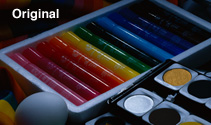
This raw scan of an underexposed transparency was converted from scanner space into DonRGB (left) and Adobe RGB (right) prior to editing. Both versions were then lightened identically using Photoshop Levels and Curves. Note how the Adobe RGB version loses detail in reds, oranges, magentas, cyans and blues, while the DonRGB version preserves all the subtle color detail in the original.
(Gamut clipping is indicated when any RGB channel reaches 0 or 255.)
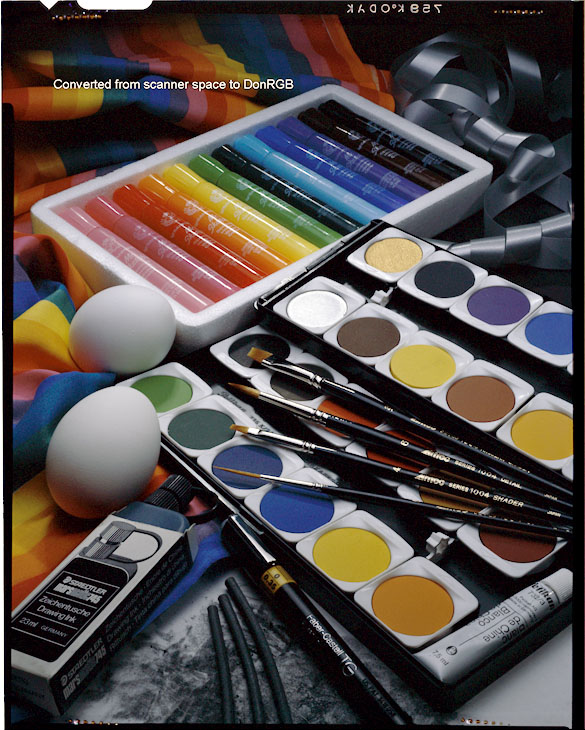
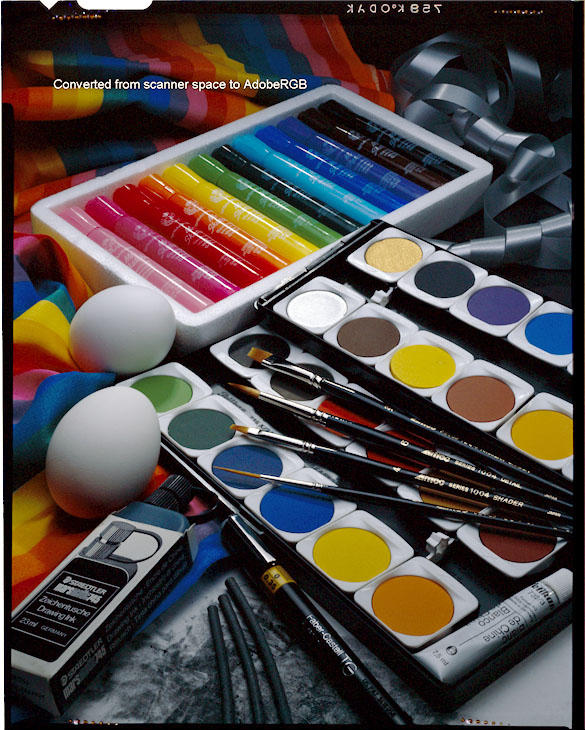 Both the above images were converted to sRGB for accurate web viewing. Click on either image to download the original. Open it in Photoshop and accept the embedded profile to see it in accurate color.
NOTE: The down-loaded images will NOT display correctly in your browser unless the browser is ICC-compatible and color management is enabled.
Serious imaging professionals should select a wide-gamut RGB working space in their Photoshop Color Settings, even if the final destination device has a relatively narrow gamut. Suitable spaces include DonRGB, BestRGB, MaxRGB or even XtremeRGB which you can download below as .zip files.
DonRGB4
(4 K)
An excellent wide-gamut working space featuring
industry-standard D-50 white point and 2.2 gamma. Captures the Ektachrome
color gamut with virtually no clipping. Named by Damon Rando in 1996 (then Apple Colorsync product manager) and known as "DonRGB4" because
I tested three slightly different earlier versions. Used successfully for many years by a number of high-quality photographers, prepress houses and camera manufacturers.
BestRGB
(4 K)
BestRGB is almost identical to DonRGB4 except for
(a) a modified red coordinate which helps encompass the supersaturated
reds and magentas in Fujichrome Velvia, and (b) a slight increase in green saturation. This is the best all-round color space for maximum gamut without exceeding
the legal CIEYxy diagram.
MaxRGB (4 K)
If you can accept 'illegal' colors (outside the CIEYxy limits) then try the outrageously saturated gamut of MaxRGB. Not that you gain anything useful, but at least you can say you have an even bigger Photoshop-style tri-coordinate RGB working space than ProPhoto RGB!
Even so, plotting MaxRGB on the CIEYxy diagram (in CHROMiX ColorThink or RGB Coords) you can see that neither MaxRGB or ProPhoto RGB contain the whole visible gamut.
XtremeRGB (4 K)
Photoshop reqires that the x and y coordinates in a tri-coordinate 3x3 matrix color space (a.) be no lower than 0.0001 (b.) be no higher than 0.9999, and (c.) not exceed a sum of 1.0 for R, G or B.
XtremeRGB pushes those rules to the absolute limit, producing the world's largest possible Photoshop-legal tricoordinate RGB space. However it does so at extreme risk and is provided here as a curiosity more than a useful tool.
Only use XtremeRGB on 16 bit-per-channel (or higher) images.
Always convert XtremeRGB images to a smaller color space BEFORE reducing from 16 bits to 8 bits.
CAUTION: XtremeRGB may cause halucinations or eye cancer.
MaRGBta (104 K)
Got the Red and Green Blues? Don't worry, be happy! Give your spirits a lift by viewing this liquid color space in CHROMiX ColorThink's 3D mode. (Pink Floyd optional).
CAUTION: Don't try this one in Photoshop!